Google has just launched Veo 3, its most powerful AI video generation model yet. The standout feature is built-in audio. Unlike other AI video tools such as Runway or Sora, Veo 3 creates videos with natural dialogue, background noise, and music. This update makes Google Veo 3 AI a leader among video generation models.
Many AI video tools work well with basic prompts. However, when it comes to complex scenes—like rare locations, intricate details, or dynamic storytelling—they often struggle. Results can be confusing, inaccurate, or visually awkward, especially with advanced veo 3 prompts.
I tested Veo 3 to see what it could do. The results were impressive. Veo 3 handled every challenge with ease, using creative veo 3 prompts. It created videos with lifelike characters, realistic lighting changes, and emotional storytelling. Every scene looked polished, with no glitches or awkward transitions.
This new AI video generation model opens up exciting possibilities. Whether you’re new to AI video tools or an experienced creator, Veo 3 is a true game-changer. It stands out in the industry and continues to set new benchmarks for creative video production.
In this veo 3 prompt guide, you’ll learn how to get the best results from Google Veo 3 AI. This Google Veo 3 Guide includes tips, real examples, and insights to help you master veo 3 prompts and unlock the model’s full potential. If you’re curious about the Google Veo 3 or want to understand how this tool compares to other AI video tools, you’re in the right place. Let’s dive in!
What is Veo 3?
Before we dive in and look at some examples, let’s quickly go over what Veo is and what’s new about it.
Veo 3 is Google’s latest AI video generator tool, first introduced at Google I/O 2025. It transforms text or image inputs into high-quality videos. The biggest upgrade in this version is sound. Veo 3 now creates videos with dialogue, background music, and natural sound effects built directly into the clips.
This feature makes videos feel complete and realistic, even if created from simple prompts. It’s a big step forward for video creation technology.
Here’s an example:
Currently, Veo 3 is available only in the United States. You can access it through Flow, Google’s platform for creating AI-powered videos. The service is part of the AI Ultra plan, priced at $250 per month (about $272 with tax).
If you’re ready to explore new ways to create high-quality videos, Veo 3 might be worth checking out.
Creating an Ad
For my first test, I created a short ad for a fictional mint brand called Mintro. The goal was to make something quick and memorable.
Here’s the scene: two colleagues are stuck in a crowded elevator, face-to-face. It’s one of those moments where fresh breath really matters. To break the silence, one shares a painfully awkward story:
“Once I sneezed during an all-hands meeting and accidentally said ‘share screen’. It was a disaster.”
The ad ends with the Mintro logo and a tagline:
“Approved for elevator talk.”
This simple setup highlights Mintro’s focus on fresh breath for everyday moments. It’s a perfect scroll-stopper designed to leave a lasting impression.
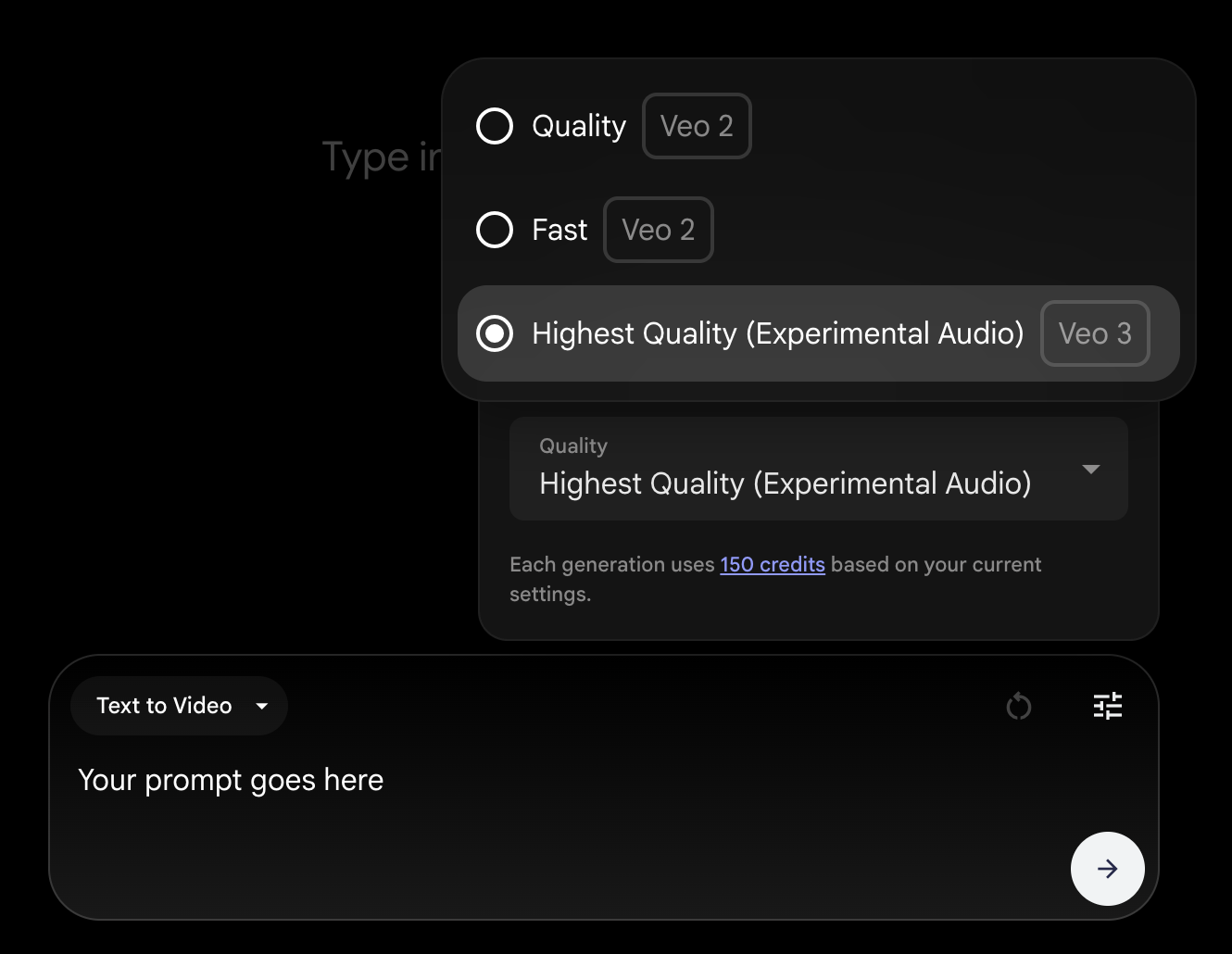
To follow along, check out the visual instructions in this image to make a video with Veo 3:
Let’s start with this prompt and see what we get:
Prompt:
It’s a busy morning. A crowded elevator is packed with people heading to work. Two colleagues, dressed in sharp office wear, are standing uncomfortably close. There’s barely any space between them. One of them leans in slightly and says with a serious face: “I once sneezed in the all-hands and clicked ‘share screen’ at the same time. No survivors.” The second person fights back a laugh, trying not to smile. Just then, the elevator dings. The doors open to a busy office floor, and the scene ends.

The first version had potential, but some details needed to be fixed. One major issue was how the elevator scene was created. Everyone in the elevator was looking at the main characters, which didn’t feel natural. During the morning commute, people often focus on their own tasks. They might check their phones, get lost in thought, or adjust their bags. Their interactions shouldn’t be observed.
Another issue was the woman touching her nose. This made the man’s breath seem foul, which defeated the purpose of the ad. The goal was to show confidence and fresh breath, so that gesture had to be removed.
The layout of the elevator also felt unrealistic. It opened directly into an office space, which is not the case in most buildings. Elevators usually lead to a corridor or lobby, not directly to someone’s workstation. Even small details like that can make the scene boring.
The video’s captions were another issue. They were unsolicited and full of spelling mistakes, which were confusing. Finally, the elevator sound was too quiet. Adding light background music from overhead speakers made the atmosphere more realistic.
After solving these problems, I worked through five versions. The final result wasn’t perfect, but it came much closer to the vision I had in mind.
Here’s the revised prompt I used:
Prompt:
It’s early morning. An office elevator is packed with people heading to work. The video begins with the doors fully closed. We hear soft elevator music playing overhead and a quiet mechanical hum in the background. The camera holds a steady, eye-level shot—no cuts, no movement. In the center, two well-dressed colleagues stand face-to-face. The space is tight. They’re close, but calm. As the doors slowly open, just before they’re halfway, the man says in a clear voice: “I once sneezed in the all-hands and clicked ‘share screen’ at the same time. No survivors.” The woman gives a natural, light laugh. She doesn’t speak, step back, or touch her face. Her reaction feels real, not forced. Around them, other passengers stay quiet and unaware. One scrolls through a phone. Another stares forward. Someone else adjusts a bag. No one looks at the pair or reacts. The elevator doors open fully. At the end of the scene, the two step out onto the office floor. The camera stays fixed in place. No one looks into the camera. There are no captions, text, or on-screen titles.

Most of the scenes worked well. The timing felt right, and the tone was just what I had in mind. But some minor things still need to be adjusted.
Most of the blocking and tone have been corrected in this version, but a few minor issues still need to be fixed:
- The elevator doors opened very quickly, which seemed sudden.
- The sound was still very low, even with the elevator music added.
In my experience with AI tools, you can complete most tasks in under a minute. However, fixing the last 10% by hand takes much longer. And sometimes, fixing things by hand is much easier. So I brought the draft into DaVinci Resolve for some light editing. I added a soft fade, adjusted the background music, and put the Mintro logo with the tagline at the end.
The logo was created with Whisk, Google’s design tool powered by Imagen 4. You can also find it in Gemini if you prefer to work from the app. The result was clean enough to use right away—no more editing was required.
With these changes in place, the ad felt complete. It’s short, a little quirky, and hopefully will stick in people’s minds.
Building AI tools? TRT Tech can optimize, scale, and enhance your projects—let’s collaborate!
Creating a Multi-Shot Scene with Character Consistency
Let’s learn to create a multi-shot scene. We’ll keep character visuals consistent in every shot. Keeping a character’s look the same seems simple, but it’s tough in AI-generated video.
First, let’s define a scene. A scene takes place in the same place and time. It can include one or more shots, depending on how you want to tell the story. Knowing this structure lets you build longer sequences and, in time, a full short film.
For this experiment, I used a famous line attributed to Ernest Hemingway. It’s a short but powerful piece of fiction:
For sale: baby shoes, never worn.
Here’s how I built a two-shot story around that line.
Shot 1:
A woman in her late 30s is opening a hallway closet. Inside are old coats, sheets, and a few boxes. She carefully pulls out a box and kneels on the floor to open it. Inside are white baby shoes wrapped in tissue paper, clean and unused.
Shot 2:
In the next shot, she’s alone in the kitchen. The camera is still, showing a side view. She gently places the baby’s shoes on the table. Then, she picks up her phone and types a list. The screen reads: “For sale: baby shoes, never worn.”
This test focuses on visual storytelling. The goal is to keep the character’s look, feelings, and surroundings the same in each shot. This is key to building a seamless narrative.
Let’s start by creating the first shot naturally (like we created the shot for the commercial).
Prompt:
Dawn in a quiet, cozy home. Soft natural light streams in through the hallway window. A woman in her late 30s walks over to a closet in the hallway. Inside, there are old coats, folded sheets, and a few plain cardboard boxes. She carefully lowers a box and kneels on the floor, showing him the comfortable, spacious corner. She slowly opens the box and unwraps something inside—a pair of small, white baby shoes, perfectly clean and wrapped in tissue paper. She sits back on her heels, holding the shoes gently in her lap. Her face is calm, unblinking—not sad, just present. She stays there for a while, still and silent. There is no music, just the natural sounds around her: the creaking of the closet door, the rustling of tissue paper, the gentle ticking of a clock, maybe the chirping of a bird outside. The scene is simple and real, with warm, natural lighting. It’s unhurried and raw, without any dramatic effects or writing – just an honest moment captured in a steady shot.
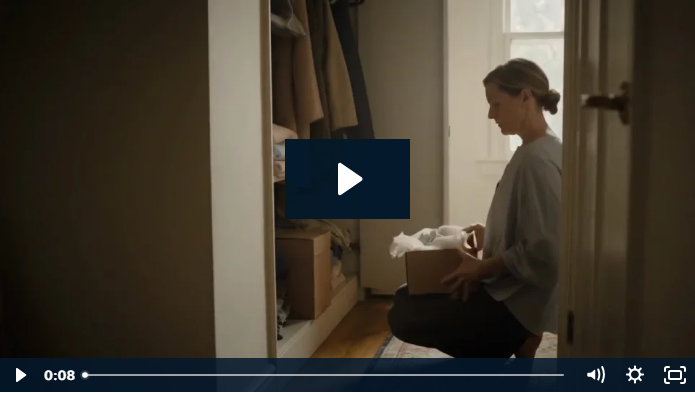
Not bad at all! The framing looks good, the colors work well, and the sound is good. The acting could use more emotion, but let’s not think too much about that.
Next, for the kitchen shot, use Scene Builder. It helps keep the characters’ faces, clothes, and looks consistent.
Once you’re happy with your first shot, click Add to Scene:
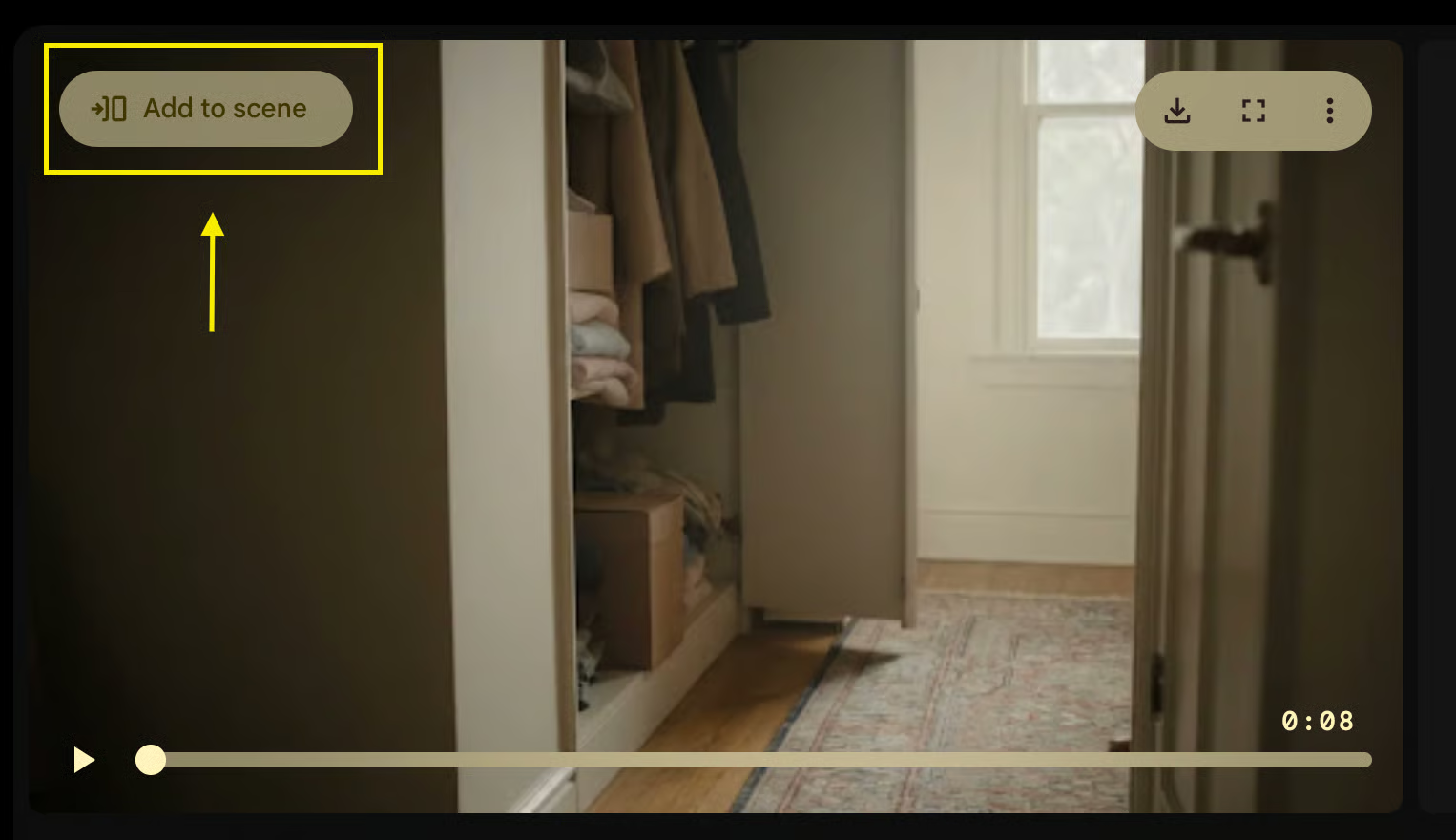
A timeline will pop up. Click the plus sign and choose one of the following:
- Jump to: This happens, and then the scene jumps to something else.
- Extend: This happens, and then the shot continues longer.
For this example, I need a cut, so I’ll pick Jump to. Here’s the prompt I ended up with after a few tries (this feature could definitely use some work):
Prompt:
In the kitchen a few minutes later, sunlight streams softly across the table, giving the room a calm and quiet feel. The house is quiet too — just the low hum of the fridge, the creak of a chair, and light taps on a phone screen. No music, no voices. A woman sits alone at the table with her phone in hand. She sets a pair of baby shoes on the table next to her and starts typing out a listing on her phone.
The camera shifts to show the screen: “For sale: baby shoes, never worn.” She pauses, staring at the words. Her thumb hovers over the post button. Her eyes begin to glisten, but she quickly blinks it away. She doesn’t cry. Instead, she locks her phone, sets it face-down on the table, and lets out a slow, steadying breath. Her face shows little emotion, but her body language speaks volumes: this is not easy. Do not include any on-screen subtitles.
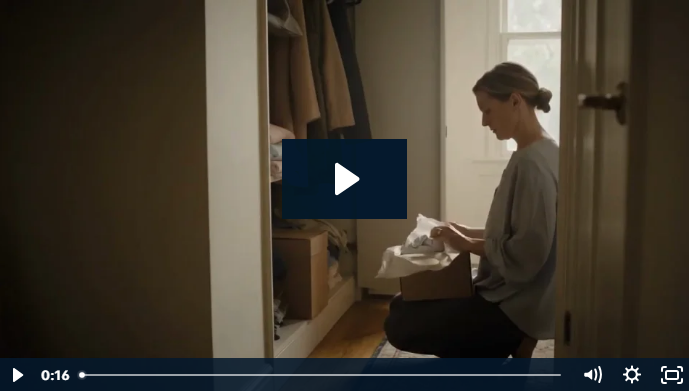
Prompt adherence was not as expected. The immediate adherence was not as expected. The tone and structure were not in line with my ideas. But the character designs were consistent. The haircut and facial structure matched, but the clothing was changing.
There were also some visual issues. For example, there was noticeable artifacting on the shoes. The output also included three separate shots instead of one. I noticed my prompt accidentally suggested a second shot, but I didn’t explain the third one.
Another issue was the audio. Exporting from Scene Builder completely removed it. I’m not sure if this is a bug or a limitation in the current setup. I only found one solution: download each shot one by one and merge them in DaVinci Resolve.
The Scene Builder tool still needs improvement. Despite its limitations, it shows the potential for better results in the future.
Hey, have you tried FlexClip? It’s one of the best online AI video editing tools, built with Google Veo 3 — easy to use and totally hassle-free.
Modular Control With Ingredients to Video
Flow has introduced an interesting feature called Ingredients for Video. This tool helps users create video scenes step by step. They mix visual elements called ingredients.
With this feature, you will have complete control over how each scene looks. You can make different parts of the video separately. Then, you can combine them later. This way, you can focus on the details of each section.
You can create elements using image prompts. But the tool does not yet support uploading images. Everything you create must be done within the platform.
This feature is perfect for anyone who wants to personalize their videos. It’s better than using automated tools.
Here is a simple example shared by the Google team to show how it works:
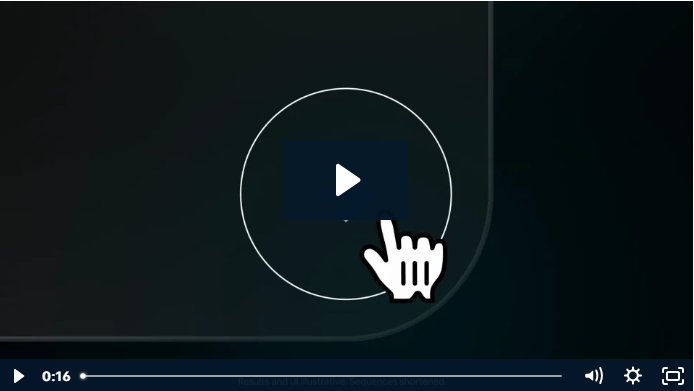
For this test, I wanted to try something a bit ridiculous—a short, Kafkaesque story:
A bug with a human face is driving an SUV. But here’s the kicker (because that’s not strange enough already): the driver’s seat is actually a king’s throne..
First, choose the Ingredients to Video option:
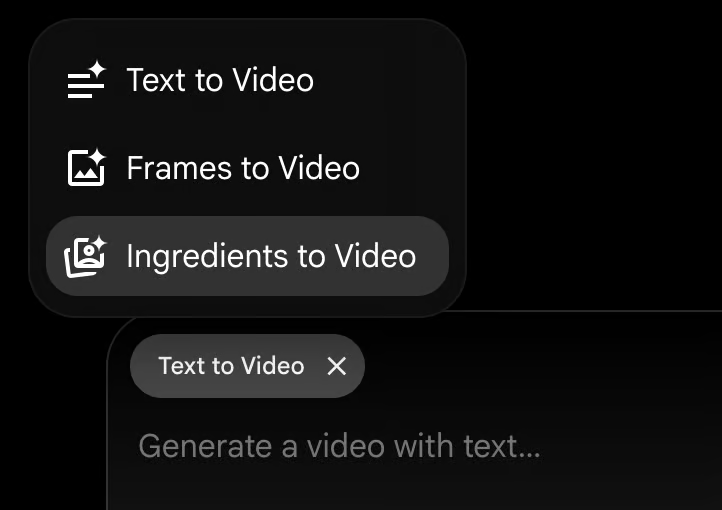
I started by making three components one by one: the chair, the SUV, and the bug.
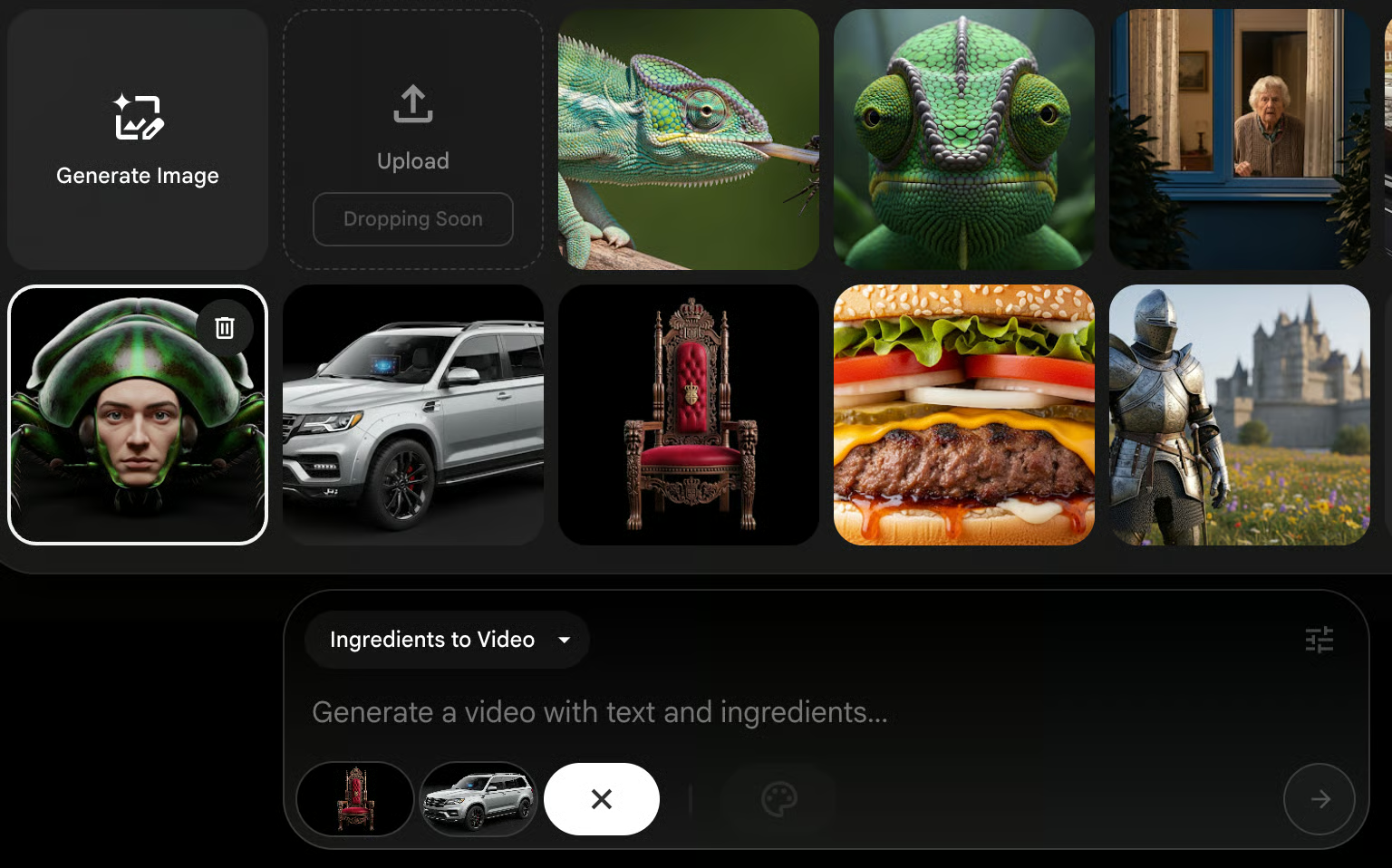
Unfortunately, this feature only works with Veo 2 right now, not Veo 3. You can choose Veo 3 from the dropdown, but it will change back to Veo 2 during generation. You’ll see this warning:

As expected, the output quality was bad:
Prompt: An insect with a human face calmly drives an SUV, sitting on a huge king’s throne.

That said, two of the three components – specifically the bug and the chair – actually looked pretty good. The SUV, not so much.
With the features of the Veo 3, this setup could have been a lot more powerful. For now, it shows potential, but it’s not quite ready yet..
Frames to Video
Frame to Video is a simple tool that helps you create animations. You start by selecting the first and last frames. The tool then creates the animation by filling in the transitions between the two frames.
You can control how the camera moves during the animation, which gives you more flexibility. Right now, you can create these frames using prompts. Soon, there will be an option to upload your own images directly. This feature is currently under development.
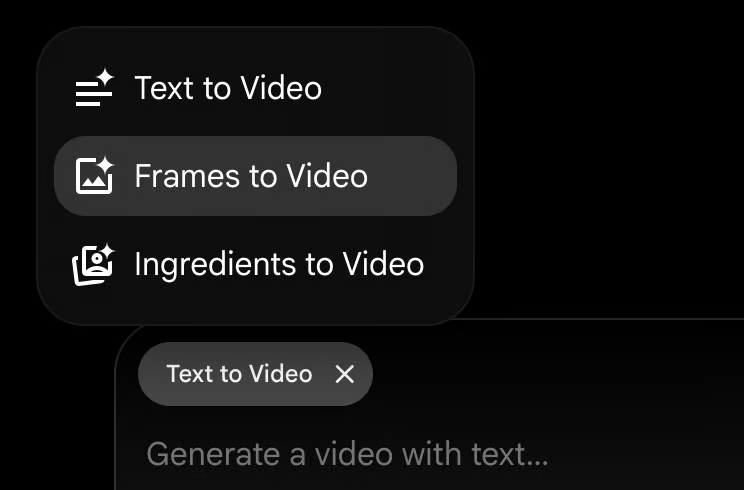
Frame to Video is ideal for creating smooth animations quickly and easily.
The Ingredients feature is set to Veo 2 by default, which significantly reduces its value. Unfortunately, it didn’t produce any helpful results during my testing.
I tried to animate a shot of a chameleon using it. I set the same image for the start and end frames and requested a dolly-in camera movement. However, the final render didn’t follow this instruction.
Prompt:
A chameleon still sits on a branch, its eyes moving freely as it carefully observes its surroundings, calmly waiting for its next meal.

Veo 3 Best Practices
When you start using Veo 3 through Flow, you’ll receive 12,500 credits. Each video creation with Veo 3 uses 150 credits, so it’s important to plan wisely from the beginning. Use your credits carefully to make them last throughout the month.
Here’s a tip: Start with one output at a time. Don’t try to generate multiple versions in one go. Each video takes about 2 to 3 minutes to process, and your credits can run out faster than you think. With limited credits each month, it’s better to be careful and thoughtful with your prompts.
To help you write better prompts, Google provides a helpful guide through Vertex AI. It shows how to structure clear, detailed instructions that lead to better results with Veo 3.
You can also check out the Runway Gen-3 Alpha Prompting Guide. Even though it’s made for a different tool, the tips work well here too. It covers how to write strong visual prompts that give you more control over your final video.
The more clear and specific your prompt is, the more likely you’ll get the video you want—without wasting time or credits.
Final Thoughts on Veo 3
Veo 3 changes how we create videos. It allows users to create videos that include built-in sound from text prompts. This feature saves time and makes it stand out from other tools.
This tool shows promise, but it has areas for improvement. Quick controls may feel limited. Some features, like Scene Builder, are still in development. You might also see occasional visual glitches. Still, these issues don’t overshadow its potential.
What makes VO3 special is the speed at which you can turn an idea into a full video. Make videos even with minor editing; the results are impressive.
For those who need quick and easy video creation, VO3 provides a practical solution. It’s a strong choice for creators who want fast results without compromising on quality.
FAQs for Veo 3
What type of videos can I create with Veo 3?
Veo lets you make many types of videos. You can create tutorials, marketing content, educational materials, and more. Its tools are versatile for a variety of creative needs.
Do I need video editing experience to use Veo 3?
No, Veo 3 is designed to be user-friendly, even for beginners. Its intuitive interface and step-by-step instructions make video creation easy.
Can I customize the characters and scenes in Veo 3?
Yes, Veo 3 gives you many ways to customize. You can change characters, backgrounds, and other design elements to match your vision.
Is audio included in the video creation process?
Of course! To make your videos more engaging and polished, Veo 3 lets you add audio. You can include voice-overs or background music.
Which platforms support exporting videos made with Veo 3?
Veo 3 lets you export videos in formats that work on most platforms. This makes sharing on social media, websites, or for presentations easy.
Can I edit my videos after they are created?
Yes, Veo 3 makes it easy to edit your videos after creation. You can refine them to meet your expectations.