Many WordPress users encounter WordPress errors at some point. The white screen of death is one of the most common problems, especially for beginners. But don’t panic – it’s more common than you think and often easy to fix.
We’ve been helping WordPress users troubleshoot issues for years. These include database connection issues and 500 internal server errors. These issues can seem complicated. But with the right steps, you can quickly resolve them.
If you’re dealing with a WordPress error, stay calm and focus on finding the cause. There’s a solution to every problem, no matter how big.
WordPress errors can seem daunting, but many can be easily fixed once you understand them. Most problems follow a common pattern, which makes troubleshooting easier.
This guide covers the most common WordPress errors and how to fix them step by step. You don’t need any technical skills to fix these problems.

Common WordPress Errors and How to Fix Them
Managing a WordPress site can be tricky at times. Errors happen, but most are easy to fix. Regular maintenance helps prevent problems.
Here are solutions to common WordPress errors. Fixing them will keep your site running smoothly and improve the user experience. Keep your site updated and secure for better performance.
1. How to Fix Internal Server Error
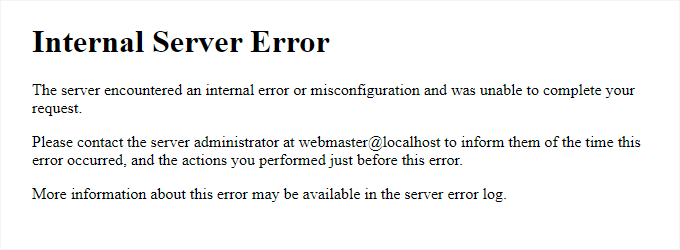
“Internal Server Error” or “500 Internal Server Error” is a common error in WordPress. It occurs when there is a problem, but the server cannot tell you what the problem is. This can make troubleshooting difficult for beginners. Since the error message does not provide details, you will need to investigate to find the cause.
To start troubleshooting, you can try the following steps:
- Check .htaccess File: The .htaccess file can become corrupted. Rename your .htaccess file to .htaccess_old. Then, reload your site. To fix the problem, go to Settings > Permalinks in your WordPress dashboard. Click “Save Changes” to create a new .htaccess file.
- Increase PHP Memory Limit: Sometimes the error occurs because of insufficient PHP memory. You can increase the PHP memory limit by editing your wp-config.php file and adding this line:
define(‘WP_MEMORY_LIMIT’, ‘256M’);
- Deactivate Plugins: A faulty plugin could be triggering the error. To deactivate all plugins, go to the Plugins menu in your WordPress dashboard. You can also rename the plugins folder in the wp-content directory using FTP. Reactivate them one by one to identify the culprit.
- Reupload Core Files: The WordPress core files might have become corrupted. Reupload fresh copies of the wp-admin and wp-includes folders from a clean WordPress installation.
Take a backup of your website before troubleshooting. If the problem persists, contact your hosting provider, as it may be a server issue.
2. This Site is Experiencing Technical Difficulties

WordPress 5.2 added a fatal error protection feature. If your site is having problems, it displays a message: “This site is experiencing technical difficulties.”
WordPress also sends an email to your admin address. This email contains a special link to access your site’s backend and fix the problem. This feature helps site owners fix errors fast.
This error message is displayed due to a fatal error in WordPress. For more details, check our guide on troubleshooting technical issues in WordPress.
If you don’t have access to your admin email or WordPress emails, it can be difficult to pinpoint the exact problem.
To fix this, make sure that your WordPress admin email address is correct. Make sure that you can receive WordPress notification emails without any problems.
3. How to Fix Syntax Error in WordPress

This error often occurs when adding code snippets to WordPress. It usually occurs when there is an error or incorrect syntax in the code. When this happens, you will encounter a PHP parse error. This error will appear as a notice on your screen.
To fix this, carefully check your code for any missing elements or syntax issues. Always double-check before saving to avoid such errors.
Parse error- syntax error, unexpected $end in /public_html/site1/wp-content/themes/my-theme/functions.php on line 278.
Error messages in code highlight unexpected problems and show where the problem is. This includes specific script and line numbers.
To fix this, check your syntax carefully. Common problems include missing parentheses or unexpected characters.
Fixing these small mistakes can help you fix coding errors. Then, your program will run smoothly. Be specific and double-check each line to avoid errors in the future.
4. How to Fix the Error of Establishing a Database Connection in WordPress
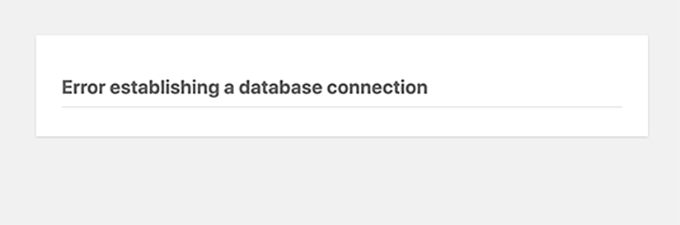
If your website is showing an error connecting to the database, it’s a common problem, but it can be confusing to fix.
This error often occurs when the database credentials are incorrect. This includes the host, username, or password. The first step in troubleshooting the problem is to double-check these details.
Sometimes, the error can occur even if your database server is down or corrupted. However, most of the time, it’s due to a login error in your database settings. Fixing these errors will often get your site back online quickly.
5. How to Fix the WordPress White Screen of Death
A plain white screen without any error message is a common problem known as the “white screen of death”. It can be confusing for beginners because they have no idea what the problem is or how to fix it.
This error often occurs when a script uses more than the allowed PHP memory. In some cases, it can be due to server settings. Sometimes, it only appears on certain parts of a website. This makes it difficult to find the root cause.
If you encounter this problem, start by checking your PHP memory limits and server configuration. Identifying the source will help you resolve the problem quickly.
6. How to Fix WordPress Posts Returning a 404 Error

Are you experiencing a 404 error when viewing a post on your WordPress site? Don’t worry—you’re not alone. This issue often means there’s a problem with your WordPress permalink settings. Other parts of your site, like the admin area, may still be working fine.
The most common solution is simple. Go to your WordPress dashboard and reconfigure your permalink settings. If that doesn’t work, you may need to manually update your rewrite rules.
These quick steps can help resolve the 404 error and get your site running smoothly again. Proper permalink settings are crucial. They help create a smooth user experience and improve your site’s SEO.
7. How to Fix the Sidebar Below Content Error in WordPress

A common problem for beginners is that the sidebar appears below the content instead of next to it. This is often caused by a problem with the WordPress theme.
One of the main reasons is forgetting to close the HTML div tag or accidentally adding an extra closing div. These types of small coding errors can ruin the layout of your site.
Another reason is improper width settings in CSS. If the width of the content and the sidebar do not fit within the container, it can cause display issues. Not properly clearing floats in CSS can also cause layout issues.
To fix this, double-check your code for errors and ensure the correct CSS settings. These simple checks can help keep your WordPress layout clean and professional.
8. How to Fix White Text and Missing Buttons in the WordPress Visual Editor
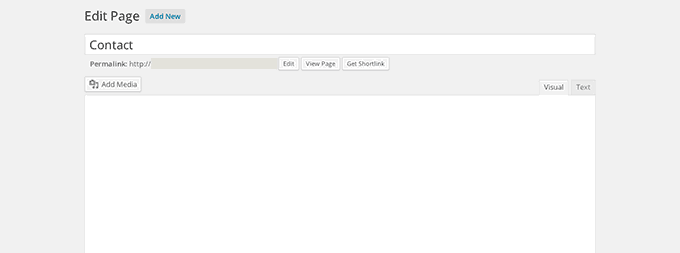
Are your WordPress Classic Editor buttons missing or showing blank spaces? This common issue can disrupt your workflow. It’s often caused by JavaScript errors, missing or broken TinyMCE files, or plugin conflicts.
TinyMCE is the core editor tool in WordPress, and when it’s modified by other plugins, it can cause problems. JavaScript issues can prevent the editor from working as expected.
To fix this, check for conflicts in your plugins. Also, make sure JavaScript is running properly. Next, verify that your TinyMCE files are intact. Fixing these issues can help restore full functionality to your WordPress editor.
9. Fix the WordPress Memory Exhausted Error – Increase PHP Memory
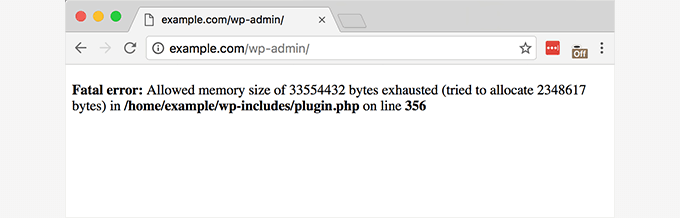
A common problem with WordPress is the “white screen of death” or this type of error:
Fatal error: Allowed memory size of 33554432 bytes exhausted (tried to allocate 2348617 bytes) in /home/username/public_html/site1/wp-includes/plugin.php on line xxx
This occurs when a script or plugin uses more memory than your server allows. Increasing the memory limit can fix this.
10. What to Do When You Are Locked Out of WordPress Admin (wp-admin)

Getting locked out of your WordPress admin area can be frustrating. This can happen if you forget your password and don’t receive a password reset email. A plugin or faulty code can sometimes cause admin access issues. This happens by making unwanted changes.
In other cases, losing access can be the result of your WordPress site being hacked. These situations are common but can be fixed with the right steps.
If you have WordPress login issues, learn how to quickly regain access. Stay safe and make sure your site is running smoothly.
11. How to Fix WordPress Login Page Refreshing and Redirecting Issue

Having trouble logging into your WordPress dashboard? If you’re repeatedly redirected to the login page, check your site URL or home URL settings in the WordPress options table.
This issue can also be caused by bad permalink settings or incorrect redirects in your .htaccess file. Fixing these settings can quickly restore access to your WordPress site.
Try searching for solutions like “WordPress login redirect solution,” “Site URL and home URL issues,” or “htaccess login issues.” These may help you resolve the issue and get back to accessing your dashboard.
12. How to Fix Image Upload Issue in WordPress
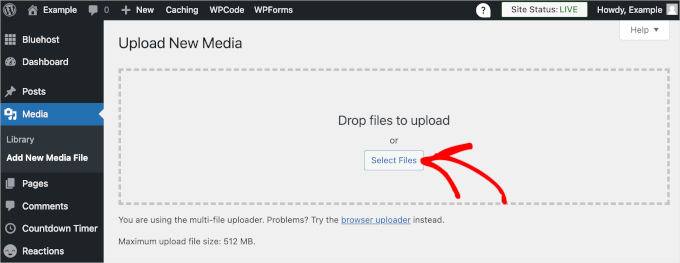
Are the images on your WordPress site missing or showing broken icons? This issue usually happens when your WordPress setup has the wrong file and directory permissions.
You may notice errors when trying to upload new images through the media uploader. Even the files in your media library may appear broken.
This issue is usually caused by incorrect permissions. These prevent WordPress from accessing or displaying your image files.
13. How to Fix Common Image Issues in WordPress
New to WordPress and not sure how to upload images? Don’t worry! It’s easier than you think!
Learning how to add, resize, or align images in WordPress can seem daunting at first. Many beginners also find it difficult to create image galleries or crop images.
This isn’t a problem with WordPress; it’s a matter of getting used to how WordPress handles media. Once you know the process, uploading and managing images on your site is easy.
14. How to Fix “Are You Sure You Want to Do This” Error in WordPress

Are you experiencing an error in your WordPress admin area? This issue often occurs when a plugin or theme doesn’t handle nonce correctly.
Nonces are unique security tokens that WordPress adds to URLs for admin actions. They help protect your site from unauthorized changes.
If you see this error, check your plugins and themes. Outdated or poorly coded tools are usually the main culprits. Update or replace them to fix the problem.
For smooth admin functionality, always use trusted plugins and themes. Secure your site and improve its performance!
15. How to Fix Briefly Unavailable for Scheduled Maintenance Error in WordPress

Seeing the “Briefly Unavailable for Scheduled Maintenance” error in WordPress? This issue often occurs when a WordPress update is interrupted or incomplete.
During an update, WordPress places your site in maintenance mode. If the process is interrupted, it may fail to remove your site from this mode. As a result, both visitors and administrators are locked out.
This error may seem frustrating, but it is a common problem that is easy to fix. Read on to learn how to fix it and how to prevent it in the future.
16. How to Fix WordPress Not Sending Email Issue

Not receiving contact form submissions or WordPress notification emails?
Many shared hosting providers block or limit email sending. This common issue helps secure their servers. Without the correct email settings, your WordPress site won’t send notifications.
Want a solution? Use an SMTP plugin to set up reliable email delivery. This ensures that your forms and notifications work smoothly.
Find solutions to fix WordPress email issues and get back on track!
17. How to Fix WordPress RSS Feed Errors

WordPress RSS feed errors are often caused by poor formatting. Common errors include messages like this:
“XML Parsing Error: XML or text declaration not at the beginning of an entity.”
This is usually seen in your feed URL, such as http://example.com/feed. The problem often starts on line 2 or later in the code.
RSS feed errors can look different depending on the browser you’re using. A common error looks like this:
“Warning: Cannot modify header information – headers have already been sent…”
This happens when something in your WordPress theme or plugin is disrupting the RSS feed. WordPress uses XML for RSS feeds. Even a small mistake, like an extra space or missing line break, can cause problems.
To fix RSS feed errors, check your theme’s functions.php file. You can also disable plugins to fix the problem. Keeping your WordPress setup clean and up to date can help prevent these issues.
18. How to Fix 403 Forbidden Error in WordPress

The 403 Forbidden error occurs when your server blocks access to a page. You might see a message like this:
“403 Forbidden – You do not have permission to access this server.”
This error is often caused by incorrect file permissions, server settings, or problematic security plugins.
It can be frustrating, but it is possible to fix it. Check your file permissions, review your server configuration, or disable problematic plugins.
The 403 error code can waste your time and hurt your website’s performance. It helps to know how to fix it.
19. How to Fix Error Too Many Redirects Issue in WordPress

Redirect loop errors are usually caused by incorrect redirect settings on your WordPress site. WordPress has SEO-friendly URLs. Many popular plugins also use the redirect function.
If a plugin or tool is set up incorrectly, it can send users back and forth between two URLs. This creates a loop that blocks the browser, preventing the page from loading.
To fix this, check your redirection settings. Incorrectly configured redirects often cause problems. However, you can easily fix them. This will improve the user experience of your site.
20. How to Fix “Upload: Failed to Write File to Disk” Error in WordPress
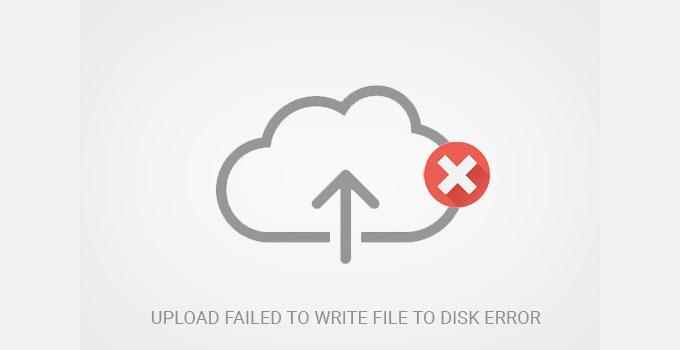
This error is usually caused by incorrect folder permissions. Every file and folder on a website has permissions. These permissions determine who can access or edit them.
If the folder permissions are incorrect, your server will not be able to write or modify new files. This prevents the web server from creating or adding files to that folder.
Fixing folder permissions is essential to ensure that your website is running smoothly. Check the permissions and set them correctly to avoid file access issues.
21. How to Fix “This site ahead contains harmful programs” Error in WordPress
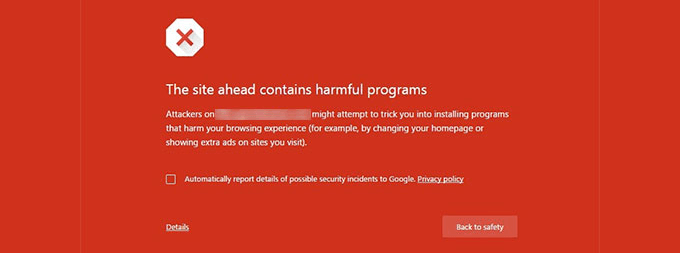
Google displays warnings when it finds malicious code on websites, such as malware or Trojans. This often happens if your site has been hacked and is being used to spread malicious software.
Another common cause is ads from low-quality ad networks. These ads can redirect users to unsafe websites that carry malicious code.
To keep your site safe, use trusted ad networks and regularly check for security issues. Keep your website secure to avoid these warnings and maintain user trust.
22. How to Fix the Missed Schedule Post Error in WordPress

Did you know that WordPress lets you schedule posts to publish automatically? It’s a great tool for bloggers to stay consistent with their content.
But sometimes, WordPress misses scheduled posts. This can happen for a few reasons and can disrupt your publishing flow.
If WordPress is missing your scheduled posts, it’s time to fix the problem. Don’t let this problem affect your blog. Learn how to ensure your posts go live on time every time.
Stay ahead and make the most of WordPress scheduling!
23. How to Fix Fatal Error: Maximum Execution Time Exceeded in WordPress
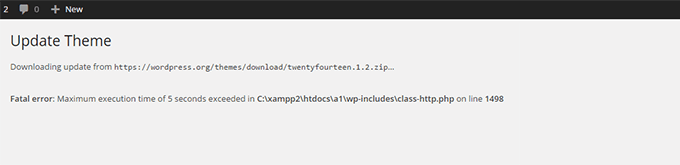
WordPress primarily uses PHP as its programming language. To prevent server overload, a time limit is set for how long a PHP script can run.
Different WordPress hosting providers set this time limit differently. Some allow longer execution times, while others keep it short.
If a script runs too long, you’ll get a “Maximum execution time exceeded” error. This error can disrupt your site’s performance and needs to be fixed quickly.
24. How to Fix Facebook Incorrect Thumbnail Issue in WordPress

Facebook sometimes has trouble displaying the correct thumbnail image. A common problem occurs when multiple images appear in the og:image tag. If the featured image is smaller than the others, this can cause problems.
To fix this, Facebook relies on Open Graph (OG) tags. These tags help Facebook identify the correct thumbnail for your content.
Plugins like All in One SEO or Yoast SEO can automatically add these tags to your site. These tools help your featured image display correctly. They also prevent the issue of missing thumbnails.
Improve your thumbnails and use the right tools. This will improve the appearance of your content when shared on Facebook.
25. How to Fix WordPress Keeps Logging Out Problem
WordPress uses cookies to manage your login session. These cookies authenticate your session using the website URL stored in your WordPress settings.
If you try to log in from a different URL that doesn’t match your WordPress settings, the login won’t work. This happens because WordPress can’t properly authenticate your session.
To fix this, always access your WordPress site using the correct URL set in your settings. This ensures a smooth login and avoids authentication issues.
26. How to Fix the Mixed Content Error in WordPress

Mixed content errors occur when your WordPress site fails to load some resources over HTTPS. This is often caused by incorrect SSL settings or a plugin or theme using HTTP URLs instead of HTTPS.
These errors can hurt your site’s SEO and make users feel unsafe when browsing your site. On an SSL-enabled website, every resource must be loaded securely over HTTPS. If it’s not, visitors may see warnings or experience issues.
To fix mixed content errors, identify which files or links are not secure. You can use an SSL plugin like Really Simple SSL or manually fix the URLs by updating them to HTTPS.
Fixing mixed content errors ensures a secure, SEO-friendly site and improves user trust. Don’t let this issue affect your website’s performance!
27. How to Fix Add Media Button Not Working in WordPress
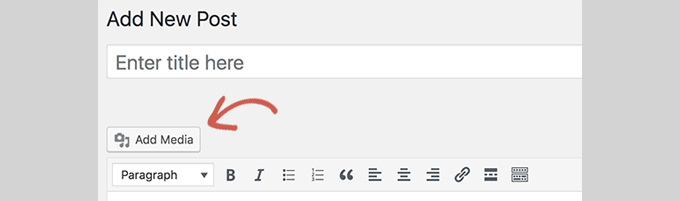
The Add Media button in WordPress uses JavaScript. It will open the media library and uploader. Sometimes, JavaScript can stop working due to conflicts with plugins or themes.
This issue often occurs because WordPress consolidates all scripts in the admin area. This helps improve performance. If a plugin or theme’s code is inconsistent, it can break the process and stop other scripts from running.
To fix this, identify the conflicting plugin or theme and update or replace it. Optimizing your WordPress setup makes the Add Media button and other features work better.
28. How to Fix the 502 Bad Gateway Error in WordPress

The 502 Bad Gateway error is a common problem that can occur on WordPress websites. It occurs when a server takes too long to respond to a user request. This delay can be frustrating for both users and site owners.
A common cause is high website traffic, which can temporarily overload the server. A poorly coded WordPress theme or plugin can disrupt the performance of the site. In some cases, a misconfigured server can also trigger this error.
To fix the 502 error, check for plugin or theme issues and contact your hosting provider if necessary. Keeping your site optimized and updated can help prevent this issue.
29. How to Fix 503 Service Unavailable Error in WordPress

The 503 Service Unavailable error occurs when your server cannot handle a request. This is often caused by a problem with a responsive PHP script, such as a WordPress plugin, theme, or custom code.
Sometimes, heavy server load, technical errors, or even brute force attacks can trigger this error. If so, it may fix itself after a few minutes.
To fix the problem, check the status of your plugin, theme, or server. Fixing the 503 error quickly is key to keeping your website running smoothly.
30. How to Fix the 504 Gateway Timeout Error in WordPress

The 504 Gateway Timeout error occurs when your server request goes through a proxy or firewall but can’t reach the upstream server.
This error is common if you are using a WordPress firewall like Sucuri or Cloudflare. It means your server is taking too long to respond.
To fix this, check your server settings, increase the timeout limit, or verify your firewall configuration. Make sure your hosting provider isn’t experiencing downtime.
Fixing this issue fast keeps your website running well and improves user experience.
31. How to Fix the WordPress Failed to Open Stream Error

The “Failed to open stream” error in WordPress occurs when the platform cannot load a file in your site’s code. This issue can be seen as a warning. In other cases, it causes a fatal error that prevents your site from working.
The error message varies depending on the cause of the problem and where it appears in the code. However, it always says “Failed to open stream,” then shows the cause of the problem. Common reasons include “Permission denied,” “no such file or directory,” or “operation failed.”
This error can disrupt your site, so it’s important to fix it quickly. Knowing why it occurs can help you troubleshoot the problem and get your website running smoothly.
32. How to Fix the WordPress 429 Too Many Requests Error
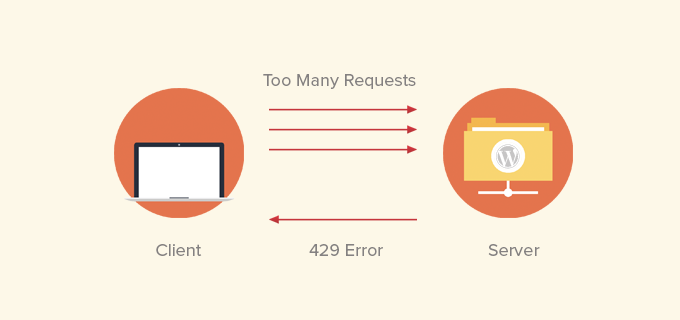
The 429 error occurs when a server receives too many requests in a short period of time. It is designed to prevent server overload and abuse. This error is often caused by bots, scripts, or users sending too many requests at once.
If not set up correctly, the 429 error can block search engines or APIs from accessing your website. This can hurt your site’s performance and search rankings.
To fix it, identify the plugin, script, or service that is causing the problem and adjust its settings.
33. How to Fix the 413 Request Entity Too Large Error in WordPress

Most WordPress hosting providers allow users to easily upload large images and media files. Their servers are usually set up to handle this.
However, sometimes the upload limit isn’t high enough for large files like themes or plugins. This can also prevent you from adding large media files to your library. When this happens, WordPress will display an error stating that the file size is too large.
If you’re experiencing this issue, you’ll need to increase the upload file size limit on your WordPress site.
34. How to Turn Off PHP Errors in WordPress

WordPress websites can display errors or warnings. This can happen on the front end or in the admin area. These errors can help you find and fix problems. However, they can look unprofessional to your visitors.
Fortunately, WordPress makes it easy to control how PHP errors are displayed. You can change some settings to hide these errors on the front end.
However, they will still be logged for debugging purposes. Once you stop displaying PHP errors, your site will look clean and error-free.
Want to make your WordPress site look professional? Learn how to disable PHP errors and keep your website running smoothly.
35. How to Fix Secure Connection Error in WordPress

WordPress regularly checks for updates using its update management system. However, sometimes your website may fail to connect to the WordPress.org site. This is usually caused by a misconfigured hosting server. This can result in a secure connection error.
WordPress updates are crucial to the security and performance of your site. Ignoring this error can leave your site vulnerable or cause performance issues. To fix the secure connection error, follow these steps. This will help your WordPress updates run smoothly.
Learn how to quickly fix this problem so that your website stays updated, secure, and running at its best!
36. How to Fix Destination Folder Already Exists Error in WordPress

If you see the error “Destination folder already exists” while installing a WordPress theme or plugin, it means that a folder with that name already exists in your WordPress directory. WordPress stops the installation to avoid overwriting the files.
To fix this issue, access your WordPress files using FTP or use your hosting file manager. Navigate to the folder path mentioned in the error message. Delete the existing folder with the same name. After that, try installing the theme or plugin again.
This simple method will fix the issue and allow you to continue setting up your website.
37. How to Fix ‘Another Update in Process’ Error in WordPress
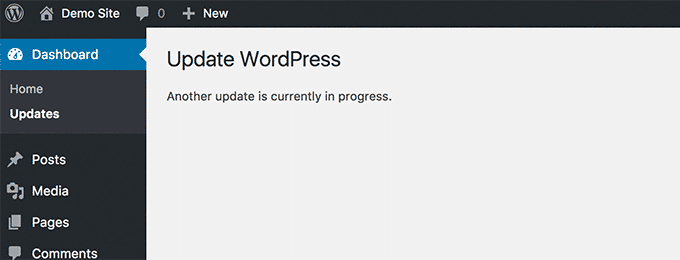
This error often occurs during WordPress core updates. It occurs when another update is started while one is already running. You will see the error message because WordPress has set an update lock on the database.
This lock prevents multiple updates from running at the same time. Usually, it disappears after some time.
If the lock does not go away or you need a quick fix, you can manually remove it by accessing your database. Follow the steps carefully to avoid problems.
38. How to Fix Password Reset Key Error in WordPress
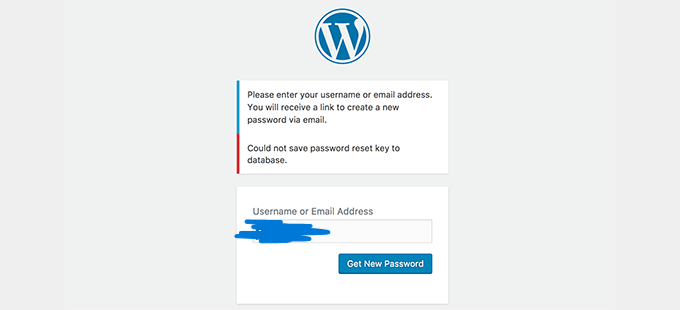
If your WordPress login page keeps refreshing and you can’t save your password reset key, your hosting account might be low on disk space. When the storage is full, WordPress can’t save new data to the database.
This issue prevents you from logging in, even though the front-end of your website is working fine.
To fix this, delete unnecessary files from your hosting account. Free up space by removing unused themes, plugins, or old backups. This will restore normal functionality and allow you to log in again.
39. How to Fix “Missing a Temporary Folder” Error in WordPress
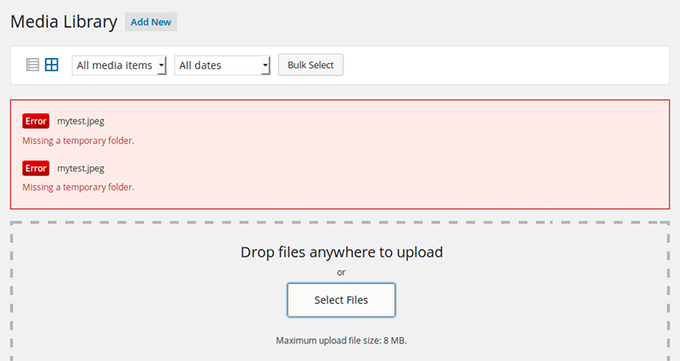
This error occurs when WordPress cannot access the folder used to store temporary files. This issue prevents media uploads, plugin, and theme installations from working properly.
To fix this issue, you can manually set up a temporary folder in WordPress. Another option is to contact your hosting provider to resolve this. Fixing this error will ensure that your website runs smoothly.
40. How to Fix Pluggable.php File Errors in WordPress
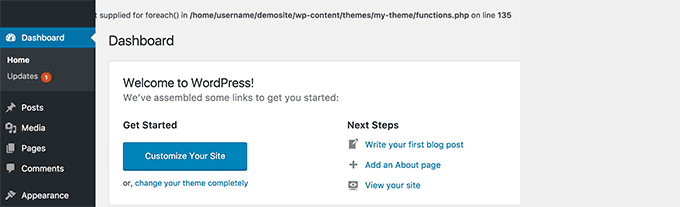
WordPress’s Pluggable.php file has important functions. Developers or users can replace these functions with their own custom code. If a plugin or custom code handles one of these functions incorrectly, it can cause an error.
A common error message is:
“Warning: Cannot modify header information – headers have already been sent (output starts at /home/username/demosite/wp-content/themes/mytheme/functions.php:1035) to /home/username/demosite/wp-includes/pluggable.php line 1179”
Sometimes, you can still access your site, but other times this error can block it completely. Managing custom code and ensuring that plugins are working properly is key to avoiding problems.
41. How to Fix Common SSL Issues in WordPress
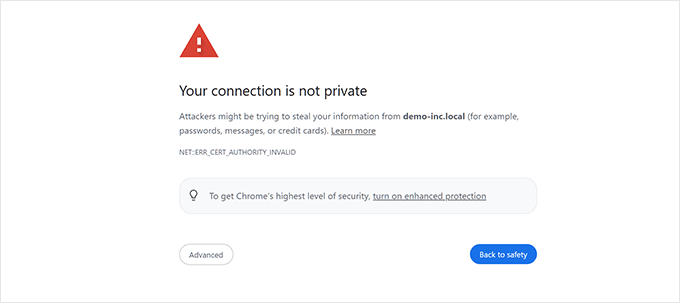
Websites using SSL/HTTPS require an SSL certificate to verify their identity. If the SSL certificate doesn’t match, browsers will block access and display a warning.
To resolve this issue, contact your WordPress hosting provider. They can help you properly install an SSL certificate for your site. This will secure your connection and remove browser warnings.
Secure your website today to build security and trust with your visitors.
42. How to Fix File and Folder Permissions Error in WordPress
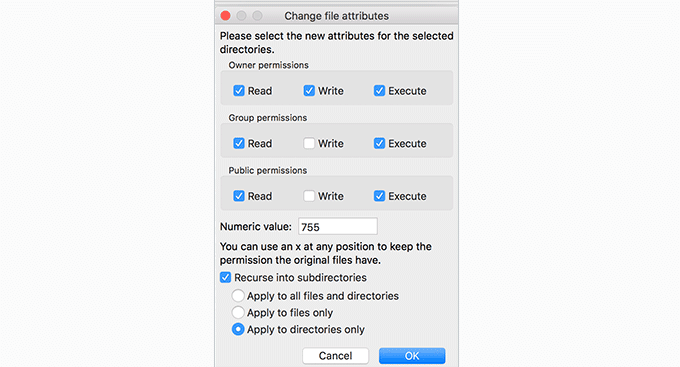
WordPress needs proper file and folder permissions to function properly. Most hosting providers set these permissions. But sometimes, they change due to misconfiguration.
You can manually fix the permissions using an FTP client. Select all WordPress files and folders, then apply the permissions recursively.
Set the folder permissions to 755 and the file permissions to 644. These settings ensure that your WordPress site remains secure and works properly. Always double-check after making changes.
43. How to Fix the HTTP Image Upload Error in WordPress

Are you experiencing HTTP errors when uploading images or media to your WordPress site? This issue can occur for a variety of reasons and often disrupts your workflow.
In many cases, the error is temporary and resolves itself within a few minutes. But if the problem persists, further troubleshooting may be required to identify the cause.
Common causes of this error are:
- File size limit
- Server issue
- Incorrect file permissions
Check these settings. They can help you resolve the issue faster.
44. How to Fix Your “Connection Is Not Private” Error
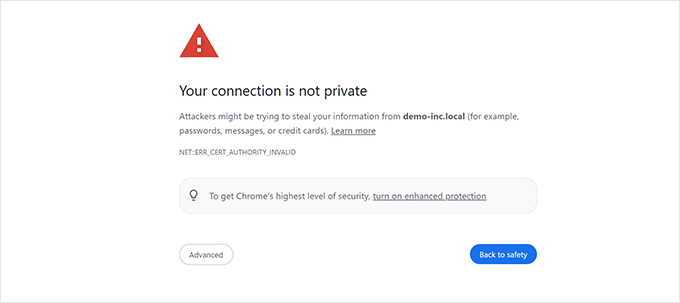
The “Your connection is not private” error is seen on SSL/HTTPS sites. It occurs when the browser cannot verify the SSL certificate. This prevents users from accessing the site and can reduce traffic. It can also damage your website’s reputation.
This error is often caused by an expired SSL certificate, browser issues, or incorrect server settings. Fix these issues quickly to keep your visitors safe and maintain their trust.
Make sure your SSL certificate is valid and installed correctly. Regularly check your server configuration and clear your browser cache to avoid errors. Keeping your site secure helps build the security and trust of your users.
45. How to Fix “The Link You Followed Has Expired” Error in WordPress

This error occurs when uploading a WordPress theme or plugin to the admin dashboard. Most hosting providers have limits on file upload size and script execution time.
If your file is too large or takes too long, you will see this message: “The link you followed has expired.”
To fix this, increase the memory limit and file upload size in WordPress. This will allow you to upload larger files without any issues.
Check your hosting settings to make sure they allow this increase. Always confirm the changes with your hosting provider to avoid problems.
46. How to Fix WordPress Website Not Updating Right Away Issue

Why aren’t updates showing up on your WordPress website? This issue is usually caused by caching.
Browsers and caching plugins store a copy of your site’s pages. This helps pages load faster, rather than having to fetch new versions from the server.
If your site isn’t updating, you’re probably viewing an old, cached version. Clearing your cache should fix the problem.
47. How to Fix “Failed to Load Resource” Error in WordPress

When your WordPress page loads, it needs various files. These include images, scripts, and stylesheets. These files help your website display correctly. If any files are missing, your browser’s Inspect tool may show a “Failed to access resource” error.
To fix this issue, first check if the missing file exists in your WordPress directory. If the file exists but the error persists, review your WordPress URLs.
Incorrect URLs can cause files to fail to load. Make sure the links to these resources are correct to avoid errors.
48. How to Fix ‘cURL Error 28: Connection Timed Out’ in WordPress

This error occurs when your WordPress site cannot connect to an external service. This causes requests like API calls, plugin updates, or cron jobs to fail. The problem often stems from DNS issues, server delays, or firewall rules blocking connections.
Sometimes, WordPress security or caching plugins block outgoing requests.
To fix this, you can:
- Change your DNS settings.
- Increase the server timeout.
- Allow services through your firewall.
These steps can help your WordPress site work properly.
49. How to Fix the “Googlebot Cannot Access CSS and JS files” Error in WordPress

Are you seeing the “Googlebot cannot access the resource” error in Google Search Console? This happens when Googlebot cannot load CSS or JavaScript files. This makes it difficult for Googlebot to view and index your page properly.
The most common cause is blocking these files in your .htaccess or robots.txt files. Make sure that your website’s root folder allows access to these important resources.
Fixing this error helps Google understand your page better. This increases your site’s performance in search results. Don’t ignore these crawl issues – they directly affect your site’s ranking.
50. How to Fix ‘Cookies Are Blocked Due to Unexpected Output’ Error in WordPress

This error occurs when you try to log in to your WordPress admin panel. It usually means that WordPress cookies are not working properly. This issue is hindering your login process.
The main reason for this is extra spaces or blank lines in the wp-config.php file. Sometimes, a plugin, theme, or .htaccess file settings can also cause this.
To fix this, check your wp-config.php file and remove the unnecessary spaces or lines. Disable plugins one by one to find the problem. Also, review your .htaccess file for incorrect redirects or settings.
Check these areas to resolve the issue and access your WordPress admin again.
51. How to Fix ‘Sorry, You Are Not Allowed to Access This Page’ Error in WordPress

You get this error when you try to access the WordPress admin page without the correct permissions. This often happens after a site migration or user role change.
This can happen due to plugin conflicts, outdated themes, corrupted files, or incorrect database settings. Running an older WordPress version can also cause this issue if the plugin is not compatible.
To fix this, check the file permissions or reset the user role. You can also try switching to a default theme or updating WordPress and plugins.
52. How to Fix ‘ERR_NAME_NOT_RESOLVED’ Error in WordPress

This error means your browser can’t connect to the server for your WordPress site. This is usually caused by DNS issues or incorrect domain settings.
Common causes include an expired domain, incorrect DNS records, or problems with your internet connection or DNS cache. Sometimes, the problem will fix itself, but not always.
You can fix this by clearing your browser’s DNS cache, updating your DNS settings, or checking your domain’s nameservers.
53. How to Fix ‘Updating Failed’ or ‘Publishing Failed’ Error in WordPress
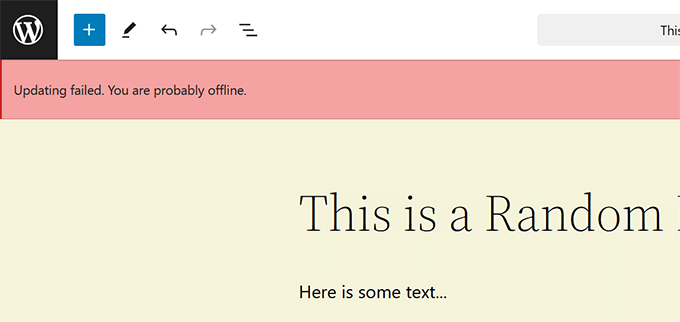
If you see “Update failed” or “Publish failed” in WordPress, it’s usually a problem with the REST API. This API block helps the editor connect to the server in the background.
The error can occur for a number of reasons. It could be due to an incorrect WordPress URL, a plugin conflict, or an issue with your site’s .htaccess file. Sometimes, your hosting provider can also block REST API requests.
To fix this, start by checking your site’s URLs for correctness. Disable your plugins one by one to find any conflicts. Make sure the REST API is working properly and isn’t being blocked by server settings.
54. How to Fix the 401 Error in WordPress
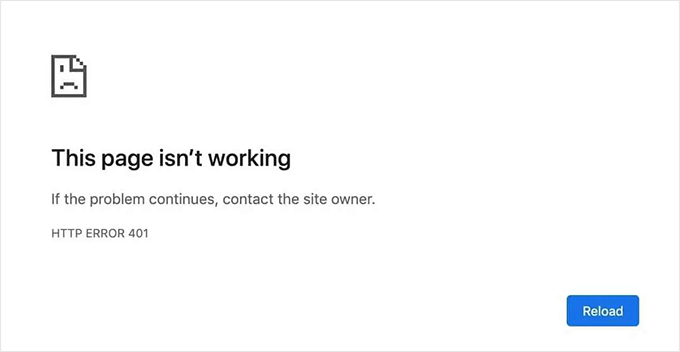
A 401 error occurs when you are unable to access your site due to missing or incorrect login information. This issue often happens when you log into the WordPress admin, access password-protected pages, or use the REST API.
This can happen for several reasons:
- Wrong login info
- Plugin problems
- Firewall settings
- A misconfigured .htaccess file
In some cases, hosting providers may block parts of your site for security reasons.
To fix this, check your login details and make sure they are correct. Clear your browser cache and cookies. Temporarily disable security plugins to see if they are causing the problem. If the problem persists, check your password settings. You can also contact your hosting provider for help.
55. How to Fix the WordPress admin-ajax.php 400 Bad Request Error

This error occurs when a plugin or theme uses an AJAX request, but the server blocks the request or it is invalid. This can cause parts of your site to stop working.
Common causes include caching issues, security plugin conflicts, and server settings like mod_security rules. Sometimes, a plugin can send incomplete data during an AJAX call, causing the problem.
To fix this, try disabling plugins one by one to find the problem. Clear your website and browser caches. If the problem persists, contact your hosting provider to adjust your server settings.
56. How to Fix ‘This Site Can’t Be Reached’ Error in WordPress
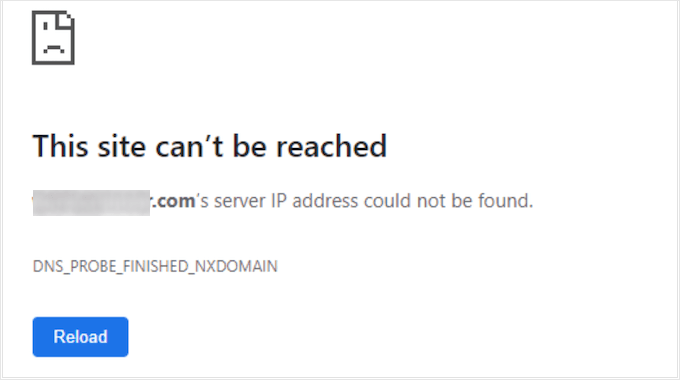
This error occurs when your browser can’t connect to your website. This is a common problem. It can be caused by DNS issues, server misconfiguration, or network issues.
Sometimes, it’s a temporary problem with your internet provider or DNS cache. Sometimes, the domain may not be pointing to the correct server. A firewall or plugin could also be blocking your site.
To fix this, try these steps: Clear your DNS cache, then restart your router. Also, check your domain settings or contact your hosting provider.
57. How to Fix ‘Sorry, This File Type Is Not Permitted for Security Reasons’ Error in WordPress

WordPress blocks certain file types to keep your site secure. If you try to upload unsupported formats like SVG, PSD, or custom fonts, you will see an error.
This happens because WordPress doesn’t allow unusual file types by default. These restrictions prevent risky files from being added to your site.
To upload these files, you can enable support for them. Use a WordPress plugin or add a code snippet to allow the file type you need.
58. How to Fix ‘There Has Been a Critical Error on This Website’ in WordPress

When WordPress shows “A serious error has occurred on this website,” it means something is wrong. This error is preventing your site from loading. Instead of a white screen, you’ll see a notification explaining the problem.
This error can be caused by a faulty plugin, a broken theme, bad code, or even a corrupted WordPress core file. WordPress may send you an email with a recovery link to access your admin area in recovery mode.
To fix this problem, start by identifying the error. Check your error logs. Disable any problematic plugins or themes. Also, review your site’s code. This will help get your website back online.
59. How to Fix ‘ERR_CONNECTION_RESET’ Error in WordPress
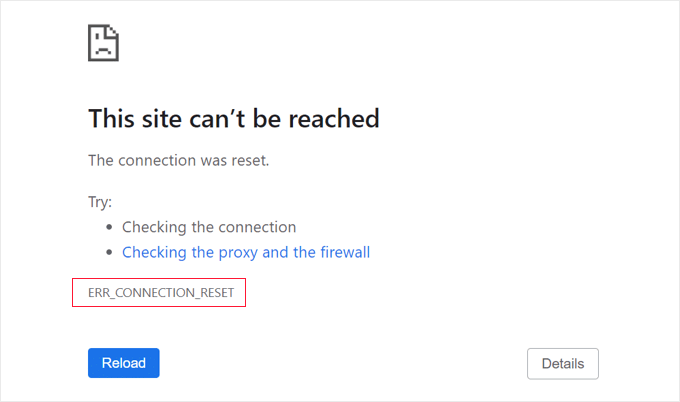
This error occurs when your browser suddenly disconnects from the website. It stops the page from loading and doesn’t provide much information, making it difficult to fix.
Common causes include internet connection issues, incorrect firewall or proxy settings, or a plugin blocking the website request. Sometimes, the problem is on the server side, such as a misconfiguration or resource limit.
To fix this, restart your router, check your firewall or VPN settings, or contact your web host to see if there’s a problem with the server.
60. How to Fix ‘DNS Server Not Responding’ Error in WordPress

This error occurs when your browser can’t connect to the server because DNS isn’t responding. DNS translates your website name into an IP address. If it fails, your site won’t load.
The problem usually stems from an internet connection problem, a router error, or incorrect DNS settings on your device. It could also be due to a domain nameserver issue or a temporary outage with your DNS provider.
To fix this, restart your router or change your DNS to a public option like Google DNS or Cloudflare DNS. If the problem persists, contact your hosting provider for help.
61. How to Fix ‘DNS_PROBE_FINISHED_NXDOMAIN’ Error in WordPress

This error occurs when your browser can’t locate the domain due to a DNS lookup failure. This means that your DNS settings may be incorrect, or the domain may not be connected properly.
Common causes are:
- An expired domain name
- Changed or deleted DNS records
- Outdated DNS cache on your computer
Sometimes, this error can also be caused by a problem with your firewall, VPN, or browser.
To fix this, clear your DNS cache. You can update your DNS server or check your domain’s DNS records. Make sure everything is set up correctly.
62. How to Fix ‘414 Request-URI Too Long’ Error in WordPress
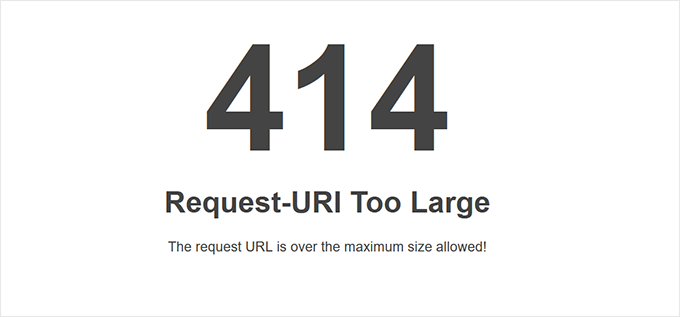
The “URL too long” error occurs when a server cannot handle a URL that is too long. This is usually caused by issues such as plugin conflicts, theme errors, or redirect loops. This can result in URLs that are too long.
The issue can also occur when a form or plugin sends too much data to the URL. This is done instead of using a POST request.
To fix this error, check for the offending plugins and disable them. Review for any redirect issues. If necessary, increase the URL limit on your server to prevent this error.
63. How to Fix ‘ERR_CONNECTION_REFUSED’ Error in WordPress
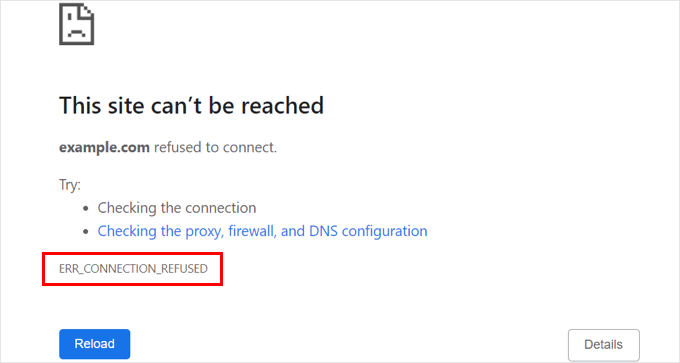
This error occurs when your browser tries to connect to your website, but the request is blocked. This stops the site from loading, even if everything looks fine to you.
Common causes include server issues, firewall rules, plugin issues, or a misconfigured CDN. Sometimes, your internet connection or browser extensions can also block the request.
To fix this, check your firewall settings or antivirus software. Try accessing the site from a different network. If the problem persists, contact your hosting provider for assistance.
Final Thought: Troubleshooting WordPress Errors on Your Own
WordPress is a powerful platform, but errors can happen. Plugins and themes are often the cause of problems on your site. Identifying the problem can be difficult, especially for beginners.
This guide explains how to fix common WordPress errors. From plugin conflicts to theme issues, we’ve covered the basics to help you troubleshoot.
Remember, every plugin or theme you install can affect your site. Always test new additions carefully. We hope this guide helps you resolve any WordPress errors you encounter.
Have any questions about WordPress errors? Contact us to book a consultation and get help from our experts!
FAQs: WordPress Errors
Why is my WordPress site showing a blank screen?
The “White Screen of Death” is often caused by a PHP error or running out of memory. Check your error logs and try increasing the memory limit in your wp-config.php file.
How do I fix plugin conflicts?
Disable all plugins. Then, enable them one by one. This will help you find the plugin that is causing the conflict. Once identified, consider updating or replacing the plugin.
“My site is stuck in maintenance mode” What can I do?
Delete the .maintenance file from your WordPress root directory via FTP or your file manager. This should fix the problem.
What should I do if I forgot my WordPress admin password?
You can reset your password via the “Lost your password?” link on the login page or by manually updating your database using phpMyAdmin.
How can I fix a slow WordPress site?
Optimize your images, use a caching plugin, and make sure your hosting server is adequate for your site’s traffic. Regularly check for outdated plugins or themes that may be slowing down performance.